
Migrating to a new CRM system can be a game-changer for your business improving efficiency, customer insights, and team collaboration. But if not managed properly, CRM migration can quickly become a nightmare of data loss, downtime, and user frustration.
At CRM Support Online, we’ve guided countless businesses through successful CRM migrations. To make your transition smooth and stress-free, we’ve compiled this 10-step CRM Migration Checklist you can follow from start to finish.
1. Define Your Migration Goals
Before touching any data, clarify why you’re migrating.
- Are you upgrading to a more scalable CRM?
- Seeking better integrations or automation?
- Looking for improved reporting or analytics?
Clearly defining your objectives helps you prioritize features and data that matter most ensuring you get measurable ROI from your new CRM.
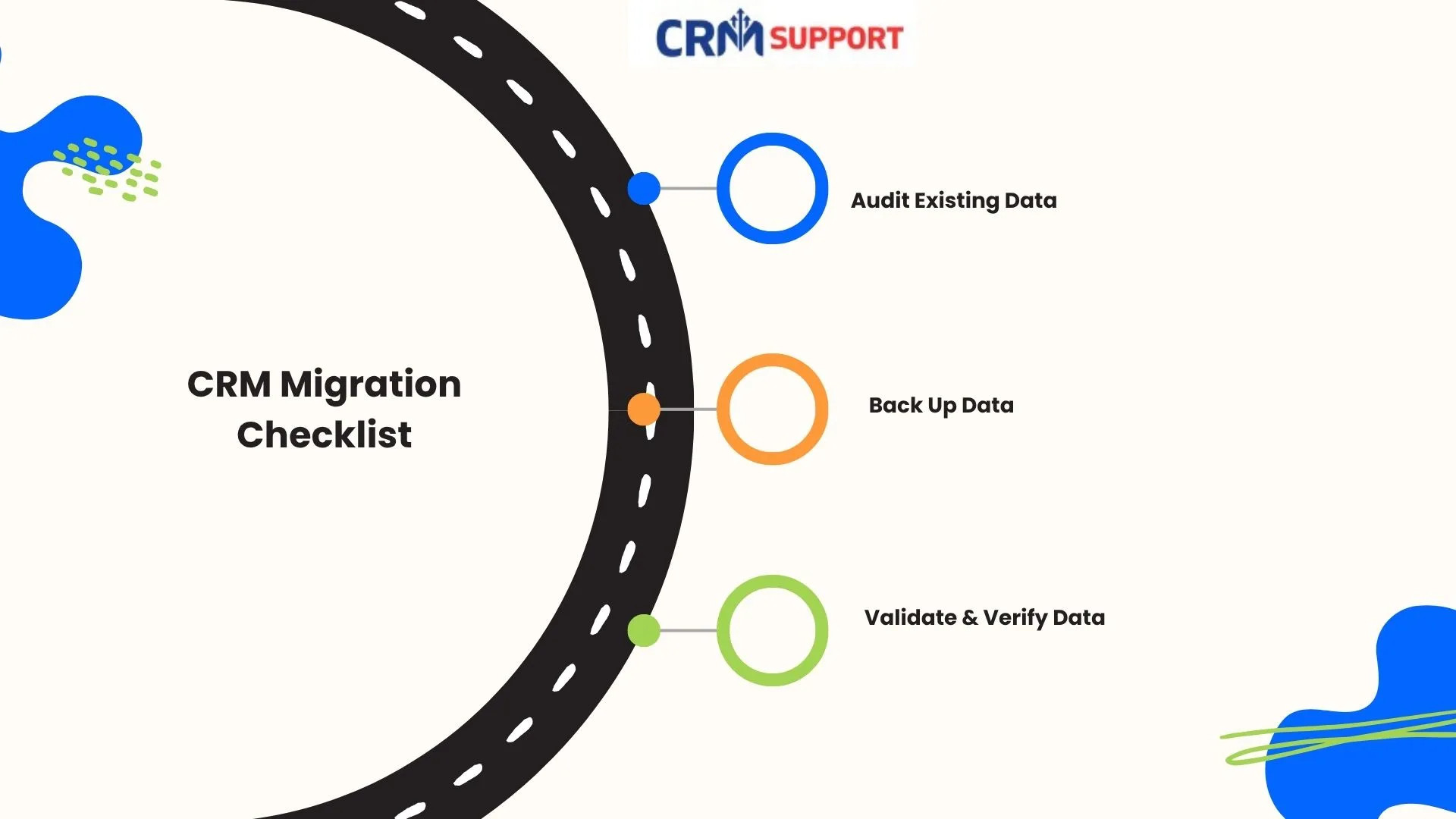
2. Audit Your Existing CRM Data
Take a deep dive into your current CRM database. Identify:
- Duplicate records
- Outdated or incomplete data
- Unused custom fields
Cleaning your data before migration reduces clutter and improves accuracy in the new system.
3. Clean and Prepare Your Data
Don’t bring messy data into a fresh CRM. Use this opportunity to standardize:
- Contact names, phone numbers, and emails
- Account and deal information
- Tags and categories
Remove any irrelevant or inactive records. Clean data equals a clean start.
4. Back Up Everything
Before you start transferring, create a full backup of your CRM data.
This is your safety net in case something goes wrong during migration. Export your data in CSV, Excel, or another format supported by both systems.
5. Map Your Data Fields
Data mapping ensures that every field from your old CRM aligns with a field in the new one.
Example:
- Customer Name → Full Name
- Lead Source → Origin Channel
Proper field mapping prevents mismatched or missing information after the move.
6. Choose the Right Migration Method
Depending on your CRM platforms, you can migrate via:
- Manual migration
- Automated migration tools
- Professional CRM migration services
At CRM Support Online, our experts handle this process securely and efficiently to minimize downtime.
7. Test the Migration
Before you migrate everything, perform a test migration using a small sample of your data.
This helps you verify:
- Field mappings are correct
- Data formatting is consistent
- No critical records are lost
Fix any issues before running the full migration.
8. Perform the Full Migration
Once testing is successful, you’re ready for the complete migration. Schedule it during low-traffic hours to reduce business disruption. Keep your CRM support team on standby to troubleshoot in real time.
9. Validate and Verify the Data
After migration, run thorough checks:
- Are all contacts, deals, and activities present?
- Do relationships between records remain intact?
- Are reports generating correctly?
Cross-check against your original data backup for 100% accuracy.
10. Train Your Team and Optimize
The final step is user adoption.
Provide training sessions to help your team get comfortable with the new CRM. Create quick-reference guides or videos. Encourage feedback to continuously improve workflows.
Train Your Team and Optimize
| Step | Task | Key Actions | Pro Tips from CRM Support Online |
|---|---|---|---|
| 1. Define Goals | Identify migration objectives | List business needs, features, and expected outcomes | Align migration goals with long-term CRM strategy |
| 2. Audit Existing Data | Review your current CRM database | Identify duplicates, outdated, and irrelevant data | Use reports to find incomplete or unused records |
| 3. Clean & Prepare Data | Standardize and organize data | Format fields (names, emails, phone numbers) consistently | Remove old contacts or inactive accounts |
| 4. Back Up Data | Create a secure backup before migration | Export data in CSV or Excel formats | Store backups in multiple secure locations |
| 5. Map Data Fields | Match old fields to new CRM fields | Align contact, deal, and account fields correctly | Double-check custom field mapping to prevent mismatches |
| 6. Choose Migration Method | Select the right migration approach | Manual import/export, tools, or professional help | Use CRM Support Online’s expert team for complex migrations |
| 7. Test Migration | Perform a small test run | Migrate sample data and check for issues | Validate formatting, relationships, and reports |
| 8. Full Migration | Execute the full data migration | Schedule during low-activity hours | Keep technical support available during the process |
| 9. Validate & Verify Data | Check migrated data accuracy | Compare old and new records for consistency | Use reports to confirm all records and links are intact |
| 10. Train & Optimize | Train your team and refine workflows | Conduct sessions, share guides, gather feedback | Monitor user adoption and tweak settings for efficiency |
Final Thoughts
CRM migration doesn’t have to be overwhelming with the right plan and expert guidance, it can be smooth and efficient.
At CRM Support Online, we specialize in end-to-end CRM migration and support services. From data mapping to post-migration training, our team ensures your transition is seamless and your CRM performs at its best.
Need help with your CRM migration?
Contact CRM Support Online today for a free consultation and let our experts handle the heavy lifting.